About Me
Hi, my name is Pradyun Gowda. I am a 10th grade boy at DNHS. Some of my hobbies are playing competitive badminton, doing math and playing video games. My favorite food is pizza, and my favorite color is blue.
Gaming Blog!
Canvas
Canvas
The first link is a link to my Gaming Blog Mini Project, and the second link is a link to the Canvas main page for PUSD. These are some important links that I use for this class.

Summary
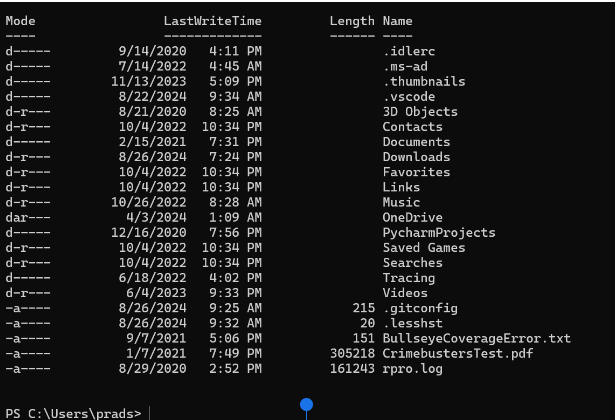
Version ControlGithub files are placed on my local machine through the cloning of the student_2025 repository. Also, making a nighthawks directory for this repo was essential to storing all of my files in my local machine. This is done through git clone for the cloning of the repo inside the directory called nighthawks which was done through the mkdir command. To access these files, all I have to do is type cd nighthawks into terminal, and then type ls to view my files. I can also type code . to edit my code in VSCode. Files are updated in Github through the make command in terminal or in the VSCode terminal. This allows the files to run on a localhost so that you can navigate to it. I would update the template of the portfolio_2025 repo by adding some more themes to the _sass bar.
Localhost vs Deployed Server
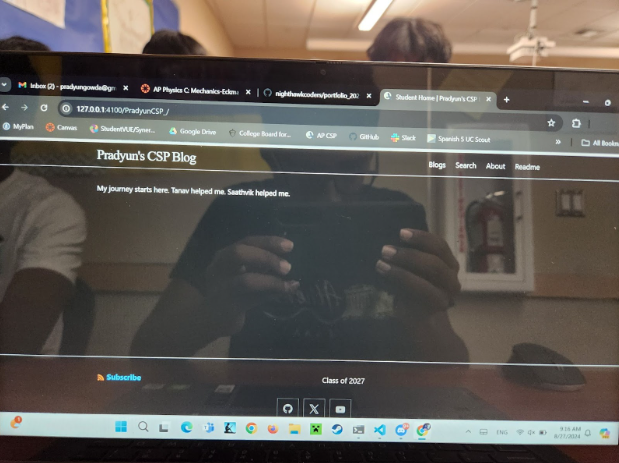
The localhost URL for my webpage is http://127.0.0.1:4100/PradyunCSP_/. No one else can see this website with this URL. The Github Pages URL for my webpage is https://prad-coder.github.io/PradyunCSP_/. This website URL is publicly available for everyone to view.
DNS and Github Pages
The domain for my Github page is called prad-coder.github.io. The URL for my Github page is different from my neighbors URL because they cloned the repo into their own Github account, naming it to what they wanted to name their repo to. This means that the URL changed right at the start of the sprint.
Tools Verification Hacks
Github usage with VSCode involves many commits, pushes, and pulls from the repository and to the repository. To view the changes that you make in VSCode, you can run the make command and view the webpage on a localhost. Then, once you are ready, you can commit the changes to your repo and sync the changes which will push and pull any differences between VSCode and the Github repo. This will update the deployed Github pasge, which is the one everyone can view. To view commits that you have made, you can go to the Gitlens search in the sidebar in VSCode, which will let you see your commit history. You can also track changes that you make that are committed or uncomitted while you code in VSCode through Gitlens.
Accomplishments
I have achieved the tools setup for all the things required, which includes ruby, bundle, python, wsl, etc. This was done through the shortcut found on your Tools Setup Hack. I have also achieved making a Gaming Blog, making a Cookie Clicker game with JavaScript, and much more with the tools that I use in VSCode. I used the Jupyter Notebooks to make these blogs. In my index.md file, I have added images and links that I use for this class and what represents myself(an about me page). I have also done this summary on the homepage of my website. Finally, I use Gitlens to check commit history to make sure my deployed website is up to date with my localhost website, and it can also autofill code for me making the developing faster.
Here are some images from the Remember Forever Quiz.